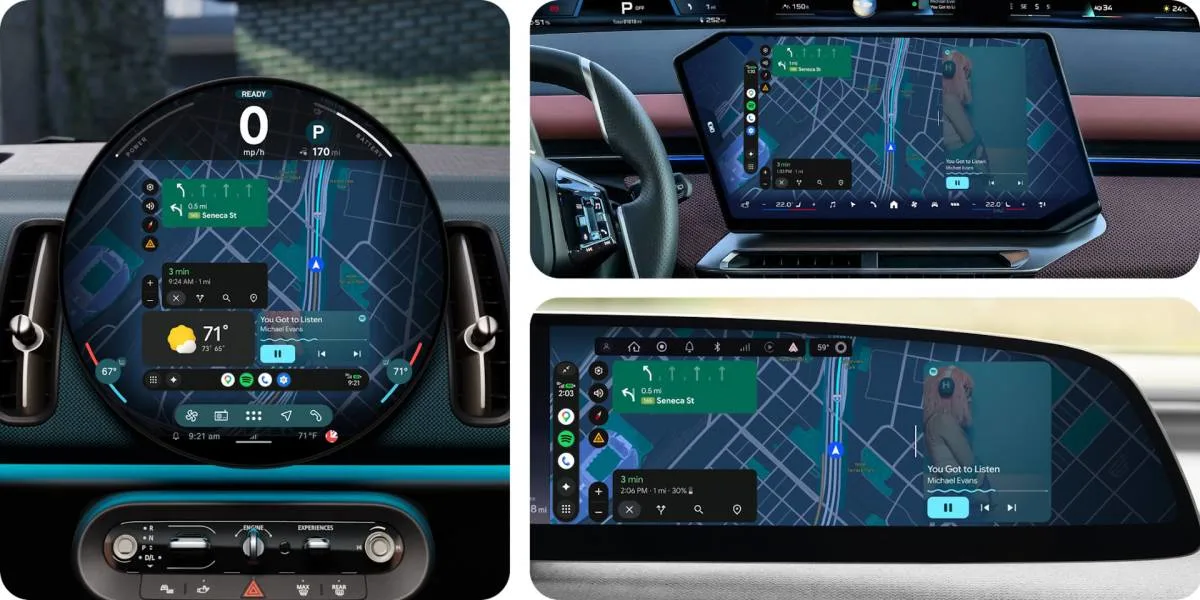
How to Customize Android Auto Home Screen A Complete Step by Step Guide
Do you feel tired of seeing the same apps on your car screen every day? You are not alone. Many people do not know that they can change things. Learning how to customize Android Auto home screen is very easy. You can move apps. You can change the layout.
You can even pick which app opens first. This guide will show you every step. No hard words. No short cuts. Just simple instructions that work. By the end of this article, your car screen will look exactly the way you want. Let us start from the very first step.
What is Android Auto Home Screen and Why Change It?
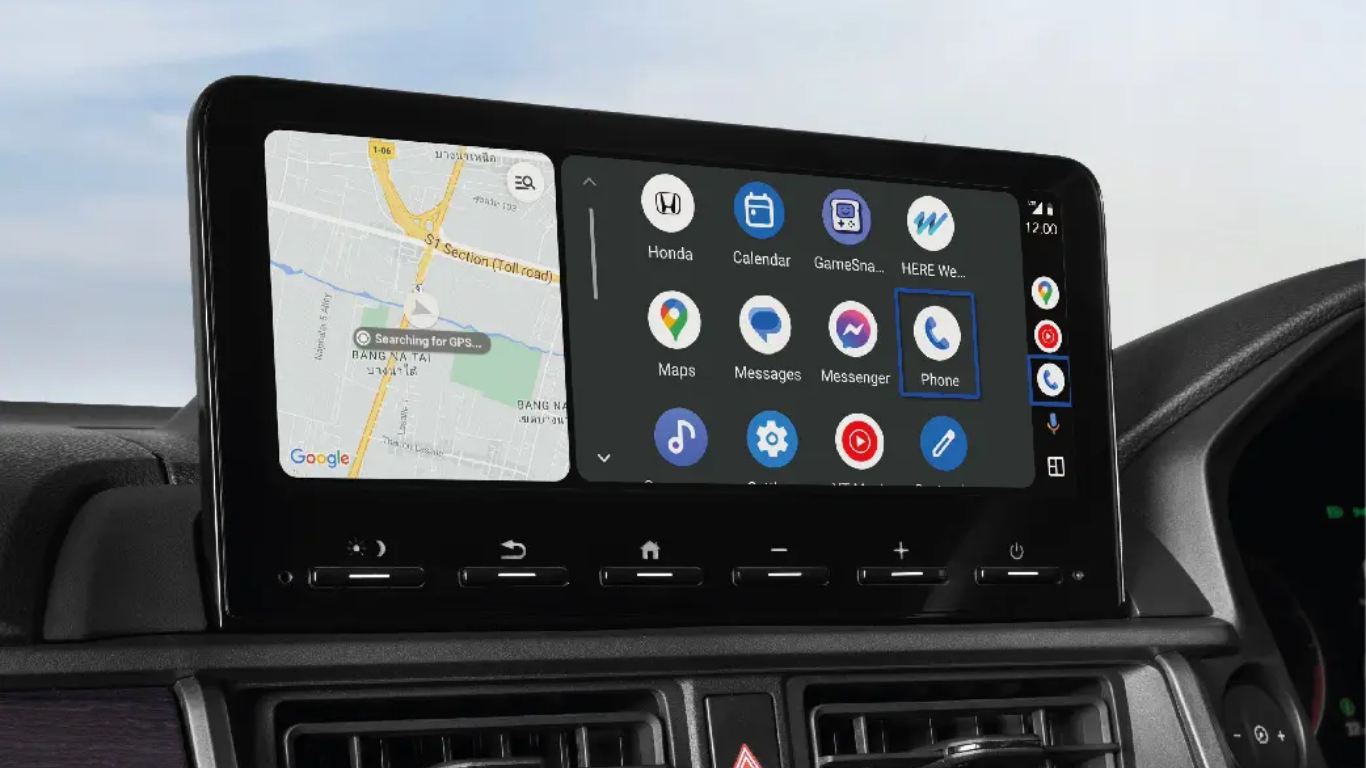
The Android Auto home screen is the first screen you see when you connect your phone to your car. It shows you some small cards. One card is for maps. One card is for music. One card is for recent calls. But not everyone likes this setup. Some people want the map to take the whole screen. Some people want the music app to show bigger. Some people do not want to see recent calls at all. That is why learning how to customize Android Auto home screen is useful. You make the screen work for you. Not the other way.
When you change the home screen, your driving becomes easier. You do not have to search for the music app. You do not have to tap many times to see the map. Everything is right there. The way you like it.
Read More: Kia Sportage Android Auto Update: Full Step-by-Step Guide 2026
How to Change Android Auto Screen Layout?
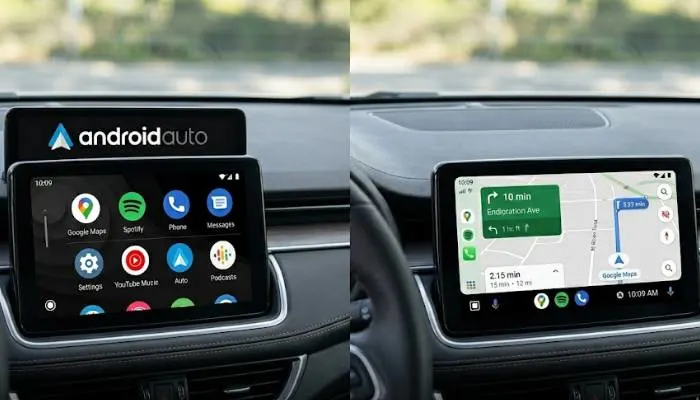
First thing you should learn is how to change Android Auto screen layout. The layout means how the apps and cards are arranged. Android Auto gives you two main layouts. One is the grid layout. The other is the taskbar layout.
Grid Layout
In grid layout, your apps are shown in a simple grid. Like a box of four or six apps. You see the apps as small circles. This layout is good if you use many different apps. You can see all of them at once. But the map does not open by itself. You have to tap the map icon.
Taskbar Layout
In taskbar layout, there is a small bar at the bottom of the screen. That bar has your most used apps. Google Maps stays at the top by default. You can switch between map and music very fast. This layout is better for most drivers.
To change from one layout to the other, follow these steps. Do this when your car is parked. Not while driving.
- Step one – Connect your phone to your car.
- Step two – On your car screen, go to Settings. The settings icon looks like a small gear.
- Step three – Look for an option called "Layout" or "Screen layout".
- Step four – Pick either Grid or Taskbar.
- Step five – Your screen will refresh. You will see the new layout.
That is how to change Android Auto screen layout. Very simple. No extra app needed.
How to Customize Android Auto Home Screen App?
Now comes the most asked question. How to customize Android Auto home screen app order. By default, Android Auto shows apps in a fixed order. Google Maps is first. Then phone. Then messages. Then music. But you can change this.
Here is the step by step way to do it.
- Step one – On your phone, open the Android Auto app. If you do not see it, go to phone Settings and
- search for Android Auto.
- Step two – Tap on "Customize launcher".
- Step three – You will see a list of all apps that work with Android Auto.
- Step four – To the right of each app, there are three lines. Touch and hold those three lines.
- Step five – Drag the app up or down to change its position.
- Step six – The app at the top will show first on your car screen.
- Step seven – Tap Done.
Now when you go back to your car, your home screen will show your favorite app first. For example, if you use Spotify more than Google Maps, you can bring Spotify to the top. Or if you never use phone calls while driving, you can send the phone app to the bottom.
Many people ask can we remove apps from Android Auto home screen. Yes you can. In the same Customize launcher menu, you will see a toggle switch next to each app. Turn off the toggle for any app you do not want to see. That app will not show on your car screen. But you can still open it from the full app list if needed.
Customize Android Auto Split Screen
Split screen is a very useful thing. In split screen, your car display shows two things at the same time. For example, Google Maps on the left side and your music app on the right side. Or maps on top and music at the bottom. This way you do not have to keep switching between apps.
Let me teach you how to customize Android Auto split screen.
First, check if your car screen is wide enough. Most new cars have wide screens. If your screen is small and square, split screen may not work. But for most modern cars, it works very well.
To turn on split screen –
- Step one – Open any navigation app like Google Maps.
- Step two – Open any media app like Spotify or YouTube Music.
- Step three – On the bottom bar of Android Auto, look for a small square icon. It is between the map icon and the music icon. That square icon turns on split screen.
- Step four – Tap that square icon. Now your screen will split into two parts.
- Step five – You can change which side shows map and which side shows music. Just tap the square icon again.
You can also customize which apps show in split screen. Go to your phone Android Auto settings. Look for "Split screen apps" or "Taskbar widgets". From there you can pick your favorite pair. For example, Maps + Spotify. Or Maps + WhatsApp. Or Phone + Music.
Once you set it, every time you connect your phone, split screen will work the way you want.
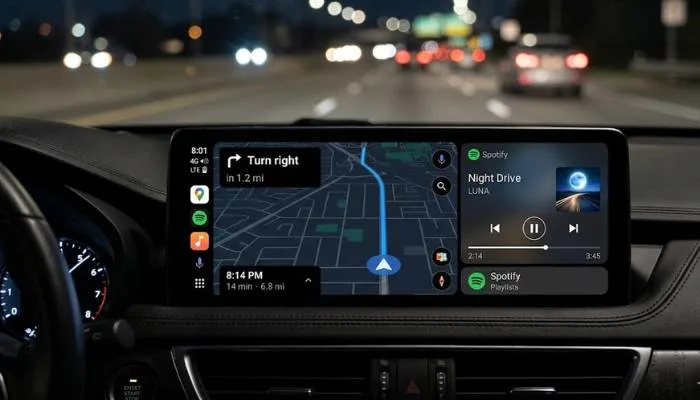
Android Auto Home Screen Layout – Advanced Settings
There is one more thing about Android Auto home screen layout that many people miss. It is called the status bar. The status bar is the thin line at the top of your car screen. It shows time, mobile signal, and battery. You cannot remove the status bar. But you can choose if it stays black or white. Go to Android Auto settings on your phone. Then go to "Display". Then pick "Day mode", "Night mode", or "Automatic". If you pick Automatic, the status bar changes color by itself.
Another advanced setting is the media card. The media card is that small box on the home screen that shows what song is playing. You can change how big this card is. On the car screen, touch and hold the media card. A small menu will open. From there you can pick small, medium, or large. Large is good if you read song names very often. Small is good if you want to see more of the map.
Common Problems When You Customize Android Auto Home Screen
Sometimes things do not work. Do not worry. Let me tell you the most common problems and how to fix them.
Problem One – Changes do not show on car screen
You changed the app order on your phone. But when you go to the car, nothing changed. This happens because Android Auto needs time to refresh. Fix – Disconnect your phone. Wait ten seconds. Connect again. Still not working? Restart your phone. That always fixes it.
Problem Two – Split screen option is missing
You do not see the square icon for split screen. This means your car screen does not support split screen. Or you are using an old version of Android Auto. Fix – Update Android Auto from Google Play Store. Also check if your car has a software update. Some car companies remove split screen on purpose. If that is the case, you cannot do anything.
Problem Three – You cannot remove an app from home screen
Some apps are fixed by Google. You cannot remove Google Maps from the home screen completely. You can send it to the bottom of the list. But you cannot delete it from Android Auto. That is a rule from Google.
Problem Four – The layout option is not in settings
Different car companies put the layout option in different places. Some put it under "Display". Some put it under "General". Some put it under "Android Auto settings". Keep looking. If you still cannot find it, your car does not support changing layout.
You May Also Read: How to Fix Android Auto Connection Problems Easily
Tips to Make Your Android Auto Home Screen Better
Here are some real tips from daily use. No fancy words. Just things that work.
Tip one – Keep only five or six apps on your home screen. More apps make the screen crowded. You will spend more time looking for apps. That is dangerous while driving.
Tip two – Put the music app next to the map app. That way you can switch very fast. If you keep phone app in between, you will tap the wrong thing.
Tip three – Use the same music app every time. Android Auto learns your habit. If you use Spotify for one month, Android Auto will show Spotify first in the music section. If you keep changing apps, the screen will always look messy.
Tip four – Turn off notifications from apps you do not need. Go to Android Auto settings on your phone. Tap "Notifications". Turn off notifications for news apps, shopping apps, and game apps. Only keep messages and calls. Your home screen will become clean.
Tip five – Every month, check for Android Auto update. Google adds new features very often. Do not miss them.
Final Words
You learned many things today. You learned how to change Android Auto screen layout. You learned how to customize Android Auto home screen app order. You learned to customize Android Auto split screen. And you learned about different Android Auto home screen layout options.
Do not try to change everything at once. First change the app order. Use it for two days. Then try split screen. Use it for two days. Then try changing the layout. This way you will know what really helps you. Every person drives differently. Your home screen should match your driving style. Not someone else's style.
Now go to your car. Try one thing from this guide today. Just one thing. Then see the difference. Happy driving.
FAQs
Can I put a wallpaper on Android Auto home screen?
No. Android Auto does not allow custom wallpapers. You can only change the layout and app order. There is no option to put your own picture as background.
Will customizing Android Auto home screen slow down my phone?
No. Changing layout and app order does not use extra battery or slow down your phone. It is just a setting. It does not run any background process.
Do these changes work on both wired and wireless Android Auto?
Yes. Wired or wireless does not matter. The home screen setting is saved in your phone. It works the same way for both types of connection.
Can I customize Android Auto home screen without touching my phone?
Yes. Once you connect to the car, you can do everything from the car screen. Go to car screen Settings. Then Android Auto settings. Then Customize launcher. You can drag apps from the car screen itself.
Why does my Android Auto home screen look different from my friend's car?
Every car company changes Android Auto a little bit. Toyota shows it one way. Hyundai shows it another way. Honda shows it a third way. That is normal. The steps in this guide will work on most cars. But the exact menu names may be slightly different.
What happens if I reset Android Auto?
If you reset Android Auto, all your customizations will go away. The home screen will go back to factory settings. You will have to do everything again. So only reset if you are selling your phone or facing a big problem.
.
.webp)