How to Delete Apps from Android TV: A Simple Step-by-Step Guide
Your Android TV is full of apps you never open. They take up space. They clutter your screen you want them gone. Good news it is easy. This guide shows you how to delete apps from Android TV. Step by step. We also cover Sony, Samsung, and Google TV. Same idea, different menus.
We show you how to hide apps without deleting them. What to do when you lose your remote and why some apps refuse to leave. No tech skills needed. Just follow along.
How to Delete Apps from Android TV?
Android TV and Google TV share the same basic process. Here is how to do it .
- Press the Home button on your remote.
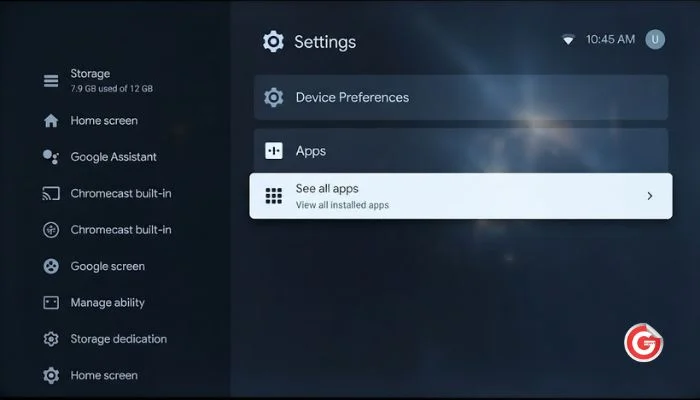
- Go to Settings.
- Select Apps.
- Choose See all apps.
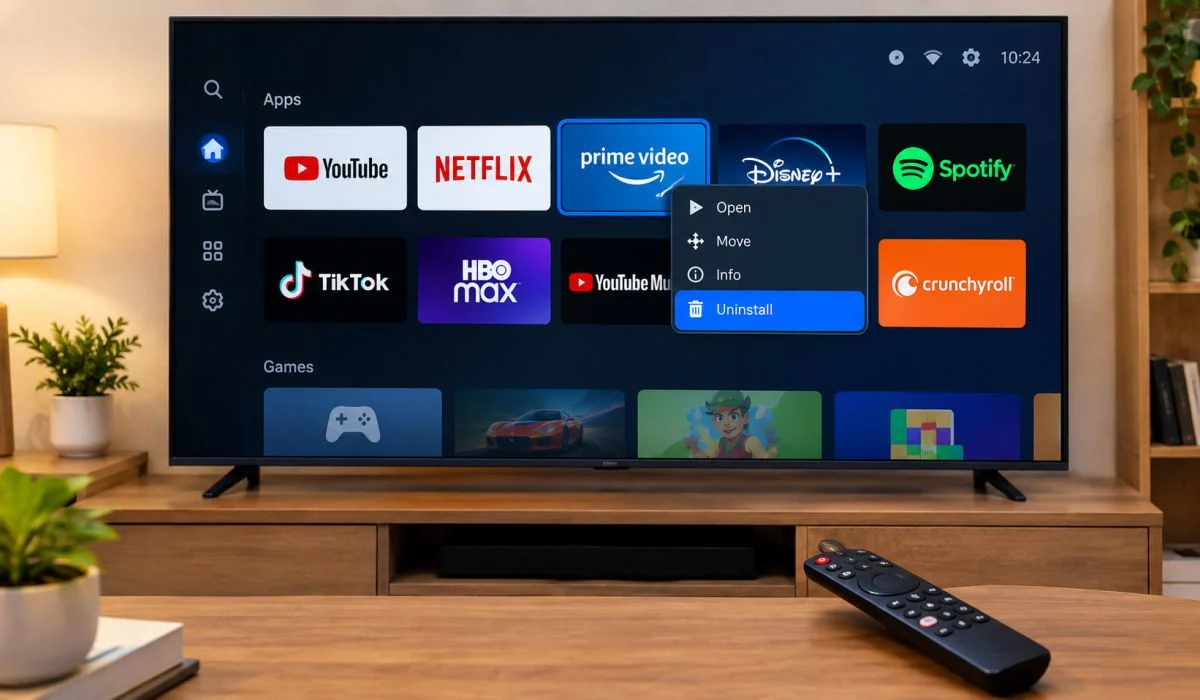
- Pick the app you want to remove.
- Select Uninstall.
- Confirm by selecting OK.
Some remotes have a Quick Settings button. If yours does, press that instead of Home. Then select Settings .
Read More: Free VPN for Android TV: Complete Guide to Safe Streaming
How to Uninstall an App from Sony TV?
Sony TVs run Android TV or Google TV. The steps are the same as above .
- Press HOME or the Quick Settings button.
- Select Settings.
- Select Apps.
- Select See all apps.
- Choose the app.
- Select Uninstall.
If your remote has an APPS button, you can press that to skip straight to the app list .
How to Delete an App on Samsung TV with Remote?
Samsung TVs use a different system. Here is how to delete apps on Samsung TV with the remote .
- Press the Home button.
- Select Apps.
- Scroll to the bottom and select App Settings (or Settings icon).
- Choose the app you want to delete.
- Select Delete from the menu.
- Select Delete again to confirm.
Some Samsung models let you long-press the Select button on an app. A menu appears. Select Delete from there .
How to Remove Apps from Google TV Home Screen?
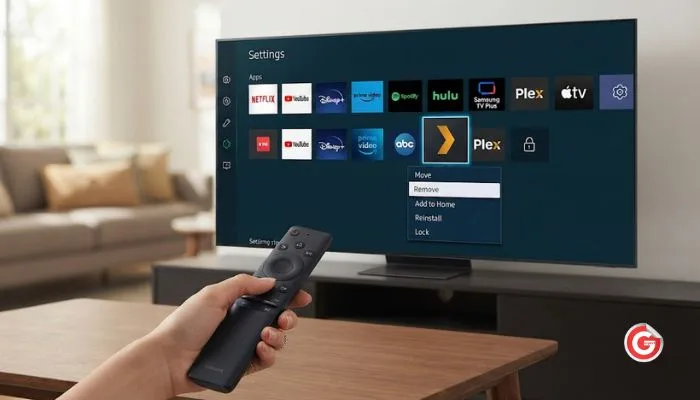
Sometimes you do not want to delete an app. You just want it off your home screen. This is different from uninstalling .
On Samsung TV:
- Go to the Apps screen.
- Select List Edit.
- Highlight the app.
- Press the Down button on your remote.
- Select Remove.
The app stays installed. It is just hidden from the home screen. You can add it back anytime .
On Google TV, you can rearrange and hide apps from the home screen using the same List Edit feature.
How to Delete Apps on Smart TV Without Remote?
Losing your remote is frustrating. You have a few options.
- Use the TV buttons. Many TVs have a small joystick or button on the side or bottom. You can navigate menus with it, though it is slow.
- Use a smartphone app. Most TV brands have official remote apps. Samsung has SmartThings. Sony has Video & TV SideView. Google TV has the Google TV app. Download the app, connect to the same Wi-Fi network, and use your phone as a remote.
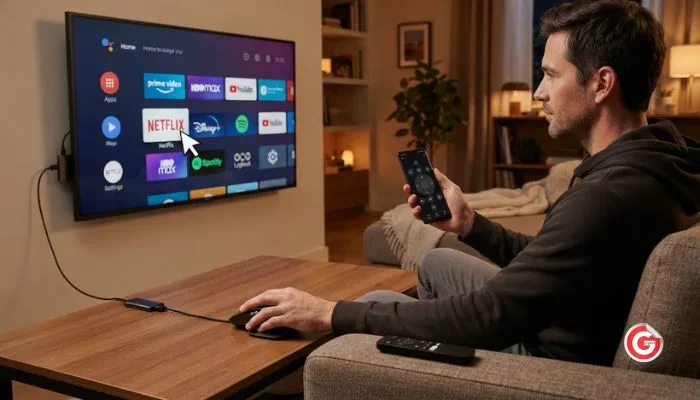
- Use a USB mouse. Plug a USB mouse into your TV's USB port. A cursor appears on screen. You can click through menus to delete apps. This works on most Android TV and Google TV models.
You May Also Read: 7 Best Budget Android TV Boxes Under $100 in 2026
What About Pre-Installed Apps?
Some apps cannot be deleted. These are pre-installed system apps. Netflix, Prime Video, and YouTube are common examples .
The delete option will be grayed out or missing. You cannot uninstall them through normal settings.
- Workaround: Use a tool like ADB TV. This app lets you remove pre-installed bloatware from Google TV. You need to enable Developer Options first. Then you can uninstall system apps through the app .
- Warning: Removing system apps can cause problems. Only do this if you know what you are doing.
The Bottom Line
Removing Apps from Android TV is easy. Navigate to Settings, Apps, See all apps. Select the app and then click Uninstall. Pick the app and hit Uninstall. Sony TVs follow the same steps. Samsung TVs have a slightly different menu but the process is similar.
Pre-installed apps often cannot be deleted. You can only hide them from your home screen. If you lose your remote, use the TV buttons or a smartphone app. A USB mouse also works on most Android TVs.
FAQs
1. How do I delete apps from Android TV?
Press Home. Go to Settings. Select Apps. Choose See all apps. Pick the app. Hit Uninstall. Confirm. Done.
2. Why can't I delete some apps?
They are system apps. Pre-installed. Netflix, YouTube, Prime Video. The Uninstall button is grayed out. You can only hide them from your home screen.
3. How do I delete apps on Samsung TV?
Press Home. Go to Apps. Scroll to App Settings. Pick the app. Select Delete. Confirm.
4. How do I delete apps on Sony TV?
Sony runs Android TV or Google TV. Press Home or Quick Settings. Go to Settings. Select Apps. Choose See all apps. Pick the app. Hit Uninstall.
5. What if I lost my remote?
Use the buttons on your TV. Or download the official remote app. Samsung has SmartThings. Sony has Video & TV SideView. Google TV has its own app. Connect to the same Wi-Fi and use your phone.
6. Does deleting an app remove my data?
Yes. All data tied to that app is gone. Reinstall later and you start fresh.
7. How do I hide an app without deleting it?
On Samsung TV, go to Apps. Select List Edit. Highlight the app. Press Down. Select Remove. It stays installed but hidden.
8. Can I use a mouse to delete apps?
Yes. Plug a USB mouse into your TV. A cursor appears. Click through menus to delete apps. Works on most Android TV and Google TV models.
..webp)

.webp)