How to Control Android TV from iPhone: Easy Methods
You are on the couch, the remote is missing, maybe it is under a cushion, maybe the battery is dead, you have your iPhone in your hand, can you use it to control your Android TV? YesThere are several ways to do it, some use Wi-Fi, some work without it, some are free, others offer more features, learning how to control Android TV from iPhone is easier than you think.
The Google TV app is the official option, third-party apps like TVRem work too, you can even use your computer, this guide covers the best methods, it shows you how to set them up, and it explains what to do when your phone and TV refuse to connect.
The Easiest Way: Use the Google TV App
Google has an official app for this. It is called the Google TV app. It works on iPhone and iPad. And it is free .
How to Set It Up
- Connect to the same Wi-Fi. Your iPhone and your Android TV must be on the same network .
- Download the app. Get the Google TV app from the App Store.
- Open the app. Tap the "Remote" icon near the bottom right of the screen .
- Find your TV. The app will scan for nearby devices. Select your TV from the list.
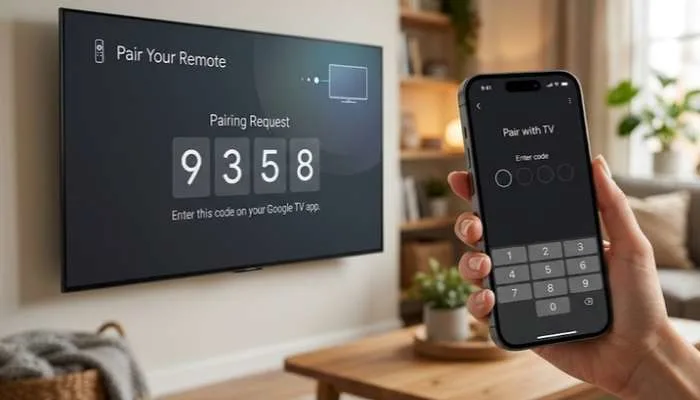
- Pair them. A code will appear on your TV screen. Enter that code on your iPhone. That is it.
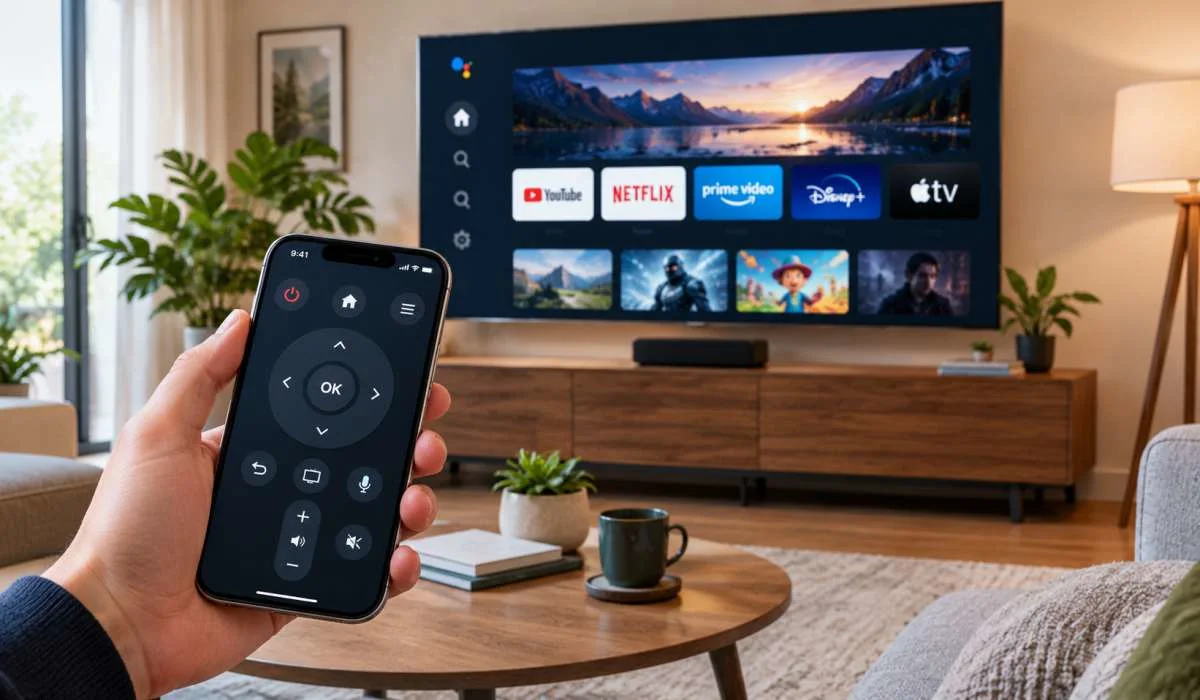
Once paired, your iPhone becomes a full remote. You get a directional pad. You get volume and power buttons. You can use voice search. You can even use your iPhone's keyboard to type searches or passwords. That is much faster than clicking through letters with a remote .
Read More: How to Delete Apps from Android TV: A Simple Step-by-Step
Other Free Remote Apps for iPhone
The Google TV app is the official option. But there are other free apps that work well. Some offer features the official app does not.
TVRem
TVRem is a free app for iPhone and iPad. It supports Android TV and Google TV. It has no ads. No subscription. No locked features .
What it offers:
- A touchpad for navigation
- Voice input through Google Assistant
- iPhone keyboard support for typing
- One-tap app launching
- It remembers your TV and reconnects automatically
Remote, Mouse & Keyboard
This app turns your iPhone into a remote for many devices, including Android TV. It supports brands like Sony, TCL, Philips, and Xiaomi .
What it offers:
- A smooth touchpad
- Volume and playback controls
- A keyboard for typing
- It also works as a remote for your Mac or PC
SideTVs
SideTVs is a more advanced option. It uses ADB (Android Debug Bridge) to control Android TVs and TV boxes. It offers a free trial of five uses. After that, you need the Pro version for full access .
What it offers:
- Full remote control
- Media casting
- Screen mirroring
- App management (install, uninstall APKs)
How to Control Android TV from iPhone Without Wi-Fi?
Most remote apps need Wi-Fi. But there are a few ways to control your TV without it.
Option 1: Bluetooth
Some apps and TVs support Bluetooth connections. The setup is similar to Wi-Fi. You pair your iPhone with the TV via Bluetooth. The range is shorter. But it works without a network. Not all Android TVs support Bluetooth remote pairing, so check your TV's settings .
Option 2: An IR Blaster
Some older iPhones had built-in IR blasters. Most newer ones do not. If you have an external IR blaster accessory, you can use it to control the TV. It works like a traditional remote. No network needed. But you need the hardware .
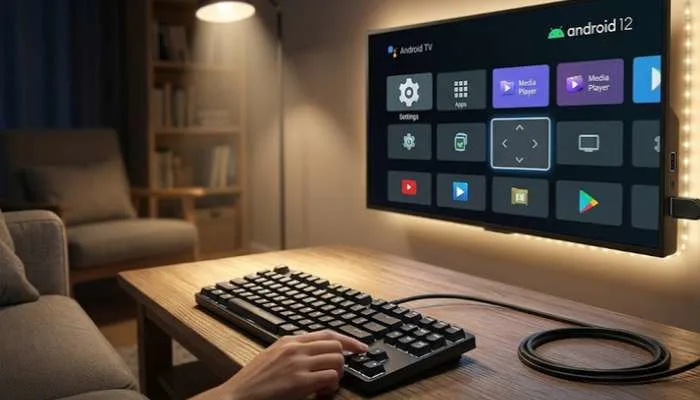
Option 3: A USB Keyboard or Mouse
If you have a USB keyboard or mouse, you can plug it into your TV's USB port. You can then use it to navigate the TV interface. This is not a remote app, but it works without Wi-Fi or a remote .
Remote Control Android TV from PC
You can also control your Android TV from a computer. This is useful if you work at a desk and want to control the TV without reaching for a remote.
QT Android Remote
This is a free, open-source application for Windows, macOS, and Linux. It connects to your Android TV over your network .
How to set it up:
- Install the app on your computer.
- Make sure your computer and TV are on the same network.
- The app will scan for your TV. Select it.
- A pairing code will appear on your TV. Enter it on your computer.
- You can now control the TV with your keyboard or mouse .
What it offers:
- Full remote control
- Keyboard shortcuts (arrow keys for navigation, Enter for OK)
- Text input
- App launching
adbtvremote
This is another option. It is a Python-based tool that uses ADB over Wi-Fi. It works on desktop and mobile. It is for people who are comfortable with the command line or Python .
You May Also Read: Free VPN for Android TV: Complete Guide to Safe Streaming
Troubleshooting: When Your iPhone Won't Connect
If your app cannot find your TV, try these steps.
- Check your network. Make sure your iPhone and TV are on the same Wi-Fi network. Not a guest network. Guest networks often block device discovery .
- Restart everything. Unplug your TV for 10 seconds. Plug it back in. Restart your iPhone. Try again .
- Check Bluetooth. If the app uses Bluetooth, make sure it is turned on for both devices.
- Update your apps. Make sure both the remote app and your TV's firmware are up to date .
- Turn off VPNs. A VPN on your phone can block local network discovery. Turn it off and try again .
- Re-pair the device. Delete the TV from the app's device list. Then pair it again from scratch .
FAQs
1. Can I control my Android TV from my iPhone?
Yes. The easiest way is the official Google TV app. It is free and works over Wi-Fi. You can also use third-party apps like TVRem or Remote, Mouse & Keyboard .
2. How do I control Android TV from iPhone without Wi-Fi?
You can use Bluetooth if your TV supports it. You can use an external IR blaster accessory. Or you can plug a USB keyboard or mouse into the TV .
3. What is the best free Android TV remote app for iPhone?
The Google TV app is the official free option. TVRem is another good choice. It is completely free, with no ads or locked features .
4. How do I set up the Google TV app on my iPhone?
Download the app. Make sure your iPhone and TV are on the same Wi-Fi. Open the app and tap the Remote icon. Select your TV. Enter the code that appears on your TV screen .
5. Can I control Android TV from my PC?
Yes. QT Android Remote is a free app for Windows, macOS, and Linux. It connects over your network and lets you use your keyboard to control the TV .
6. Why can't my iPhone find my Android TV?
Check that both devices are on the same Wi-Fi network. Restart both devices. Turn off any VPN on your phone. Make sure the TV's remote control setting is enabled .
7. Do these remote apps work with Google TV?
Yes. Google TV is built on Android TV. Apps that work with Android TV also work with Google TV .
8. Is there a remote app that lets me type on my TV from my phone?
Yes. The Google TV app lets you use your iPhone's keyboard to type searches and passwords on your TV. TVRem also offers keyboard support .
..webp)

.webp)