How to Add Video Schema Markup to a Website: SEO Guide 2026!
Video schema markup is a specific type of code you add to your website. It gives search engines detailed information about your videos. Think of it like a label that tells Google the title, description, duration, and thumbnail of your video. This helps search engines understand your content better and display it in rich results. These are enhanced search results that show video thumbnails and extra details.
They stand out visually and get more clicks than regular text results. Knowing how to add video schema markup to a website gives you a real advantage. Without it, search engines might miss your video content entirely. They can still index your page, but they will not display those attractive video snippets in search results.
Why Video Schema Markup Is Important?
Adding video schema gives you a real advantage. Videos that appear with thumbnails and extra information get much higher click-through rates. They are more visible in search results, especially in the "Videos" section that Google shows alongside text results .
Also, video schema helps you show up in AI Overviews and other modern search features. It helps search engines understand your content more completely, especially if you use multiple schema types on the same page .
Read More: How Google Indexes Video Content – A Complete Step by
How to Add Video Schema in WordPress
For WordPress users, plugins make the whole process simple. You do not need to write any code.
Option 1: Using AIOSEO
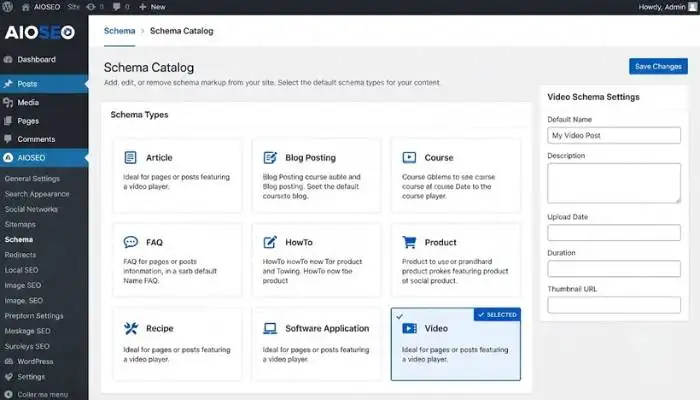
AIOSEO is a popular SEO plugin with a built-in schema generator.
-
Install and Activate AIOSEO: Get the plugin from the WordPress repository or website.
-
Open the Schema Generator: On the post or page where you have embedded a video, scroll down to the AIOSEO Settings and click the Schema tab. Then click the Generate Schema button .
-
Choose Video Schema: In the schema catalog that appears, select Video from the list .
-
Fill in the Details: A form will open. Fill in the fields about your video. The key ones are:
-
Name: The title of your video.
-
Description: What the video is about.
-
Content URL: The link to the video file on your site (usually an .mp4). Search engines prefer this over an embed URL .
-
Embed URL: The URL on YouTube or Vimeo where the video is hosted.
-
Upload Date: When the video was published.
-
Family Friendly: Choose Yes or No.
-
Thumbnail URL: Add an image for the video preview .
-
-
Add the Schema: Click Add Schema. The plugin will create the correct code for you .
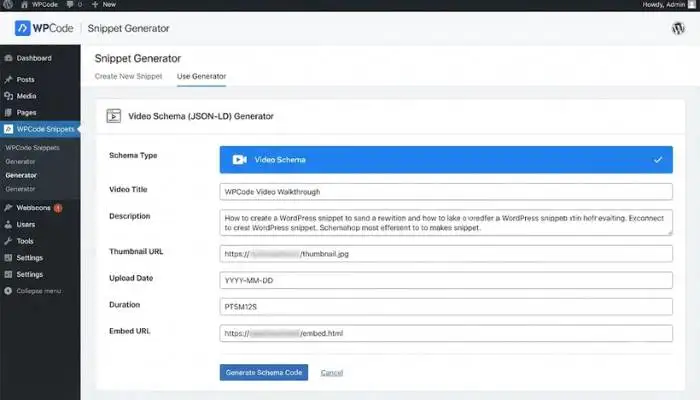
Option 2: Using WPCode
WPCode also has a user-friendly schema generator.
-
Install and Activate WPCode Pro: The Pro version includes "Smart Tags" that automatically pull in data like your post title .
-
Find the Snippet Generator: Go to Code Snippets » Add Snippet and switch to the Snippet Generators tab .
-
Choose Video Schema: Select Video Schema from the list of options .
-
Enter Your Video Details: Switch to the Video Details tab and fill in the information about your video. You can use Smart Tags to dynamically pull in values. For example, use
{title}to automatically use your blog post title as the video name . -
Save and Publish: The plugin will generate the schema code and insert it into your page.
How to Add Video Schema Without WordPress
If you are not using WordPress, you can still add schema to your website.
-
Use a Free Video Schema Generator: There are several online tools that create the code for you. The Google Structured Data Markup Helper lets you tag elements on a page and generates the code . Merkle's Schema Markup Generator and RankRanger are also free options .
-
Copy the Code: The generator will give you JSON-LD code. Copy this code.
-
Paste It on Your Page: You need to paste the code in the
section of your webpage or immediately after the video on the page. -
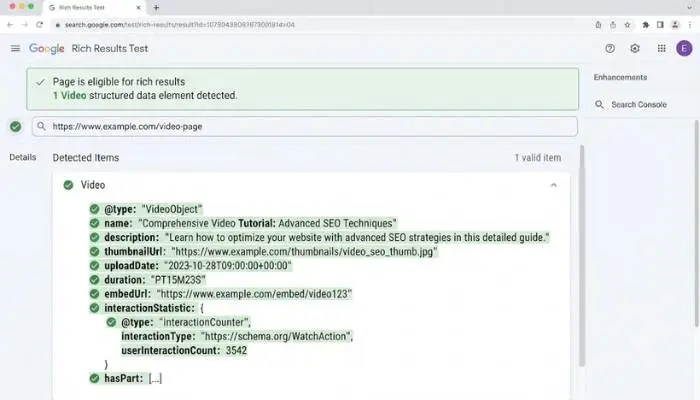
Test Your Schema: Use Google's Rich Results Test tool to check if your schema is working. Many schema generators have a test button built in .
You May Also Read: How to Optimize Videos for Google Search | Video SEO
Required Properties for Video Schema
To get your videos to show up in rich results, you need to include certain fields.
| Field | Required? | What It Is |
|---|---|---|
| Name | Yes | The title of your video |
| Description | Yes | A short summary of what the video covers |
| Thumbnail URL | Yes | The preview image. Must be at least 160x90 pixels |
| Upload Date | Recommended | When the video was first published |
| Duration | Recommended | The length of the video. Use ISO 8601 format, like "PT2M30S" |
| Content URL or Embed URL | Recommended | The link to the video file or the page where it is embedded |
Multiple Videos and Schema Types
You can add multiple VideoObject schemas on a single page if the page has several videos. Each video needs its own complete block of code. Google can index each one separately .
Also, you can use more than one schema type on the same page. This gives Google the most complete picture of your content. For example, if your video is part of a recipe, you can add both video and recipe schema. AIOSEO makes this easy by letting you add as many schema types as you need .
FAQs
1. What is video schema markup?
Video schema is structured data you add to your website to tell search engines about your video. It includes the title, description, thumbnail, and other details. It helps search engines understand your content and show it in rich results.
2. Is video schema important for SEO?
Yes. It is very important. Video schema helps your videos show up with thumbnails in search results. This makes your content stand out and often leads to more clicks and traffic.
3. Do I need coding skills to add video schema?
Not if you use a plugin or an online generator. Plugins like AIOSEO and WPCode have simple forms that create the correct code for you. For sites without WordPress, you can use free video schema generators that also require no coding.
4. Can I add video schema for YouTube videos embedded on my site?
Yes. Adding video schema to pages with YouTube embeds is one of the best things you can do. It helps associate the video with your page content and can lead to more traffic. Use the embed URL field for the YouTube link.
5. Can I add multiple videos to one page?
Yes, you can add multiple VideoObject schemas to one page. Each video should have its own complete JSON-LD block. Google will index each video separately.
.


.webp)