How to Use Google Gemini Video AI Generator?
Video creation used to require expensive cameras and editing software. Not anymore. Google's Gemini AI now lets anyone turn simple ideas into polished videos. This guide walks you through exactly how to use Google Gemini video, step by step.
What Is Google Gemini Video?
Google Gemini video is an AI-powered tool built into the Gemini app. It creates short video clips from text descriptions, photos, or even other videos . The technology behind it is called Gemini Omni, which Google calls "the next step" in AI content creation .
Think of it like having a video editor in your pocket. You type what you want, upload a starting image if you like, and the AI builds the video for you. It can add movement, sound effects, and even ambient background noise . The output quality is high enough for social media and presentations.
Read More: How Google Indexes Video Content – A Complete Step by
How to Use Google Gemini to Make Videos
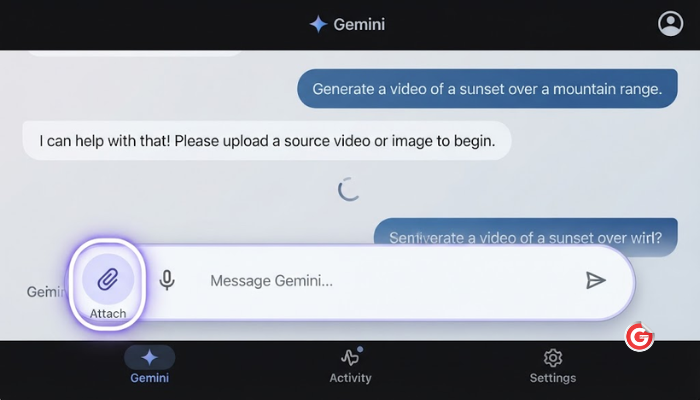
You can access Google Gemini video generation in two ways. Let's cover both.
Option 1: Using the Gemini App
This is the easiest method for most people.
Here is what you need:
- A Google AI subscription (Pro, Plus, or Ultra plans)
- The Gemini app installed on your phone or access to gemini.google.com
- You must be 18 years or older
Steps:
- Open the Gemini app or go to the website
- Look for the file attachment icon in the chat box
- Select the video generation option
- Upload a photo or video if you want to use one as a starting point
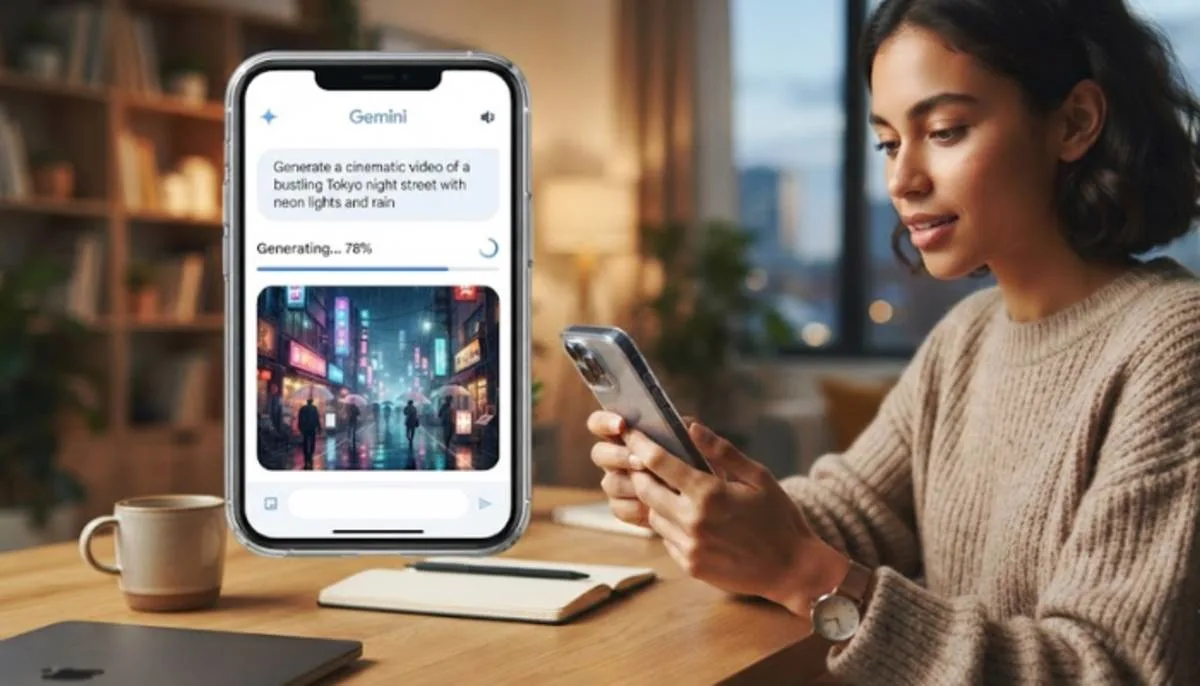
- Type a clear description of what you want the video to show
- Hit submit and wait a few minutes
The AI processes your request and returns an eight-second video clip . You can download it or share it directly from the app.
Option 2: Using Google Flow
Flow is Google's more advanced filmmaking tool. It offers more control and is available to the same subscribers . Flow also has an AI assistant called Flow Agent that helps brainstorm scenes and organize your project .
Option 3: YouTube Shorts (Free Option)
There is a free way to use this technology. YouTube Shorts creators can access Gemini Omni Flash without paying for a subscription . This makes the Google Gemini video AI generator free for anyone creating short-form content.
What Can You Create?
The Google Gemini AI video generator handles several types of projects.
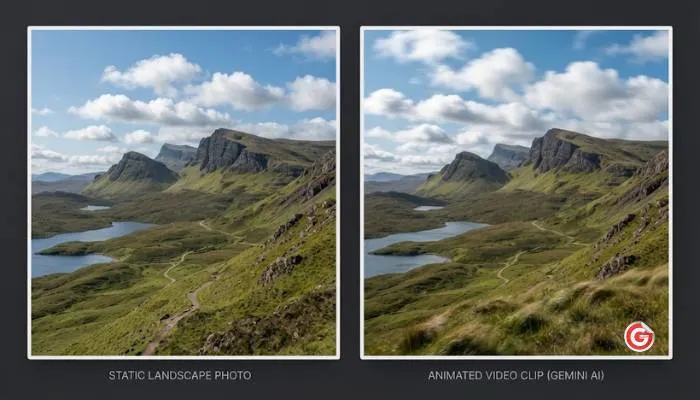
- Turn photos into videos. Upload a picture and describe the movement you want. For example, upload a landscape photo and ask for clouds drifting across the sky. The AI animates the scene .
- Create from text only. No image needed. Just type "a city street at night with rain" and Gemini builds the scene from scratch. Because the AI understands physics, the rain and lighting look realistic .
- Edit existing videos. Shoot a clip on your phone, upload it, and ask Gemini to change elements. You can alter actions, add new objects, or transform the environment entirely .
- Make educational content. The AI can generate visual explainers on complex topics. Google demonstrated a claymation-style video about protein folding .
Important Limits to Know
The Google Gemini video maker has restrictions.
- For subscribers: Google AI Pro subscribers get three videos per day. Ultra subscribers get up to five videos per day .
- For YouTube Shorts: Free access is available but likely has its own limits.
- Ownership rules: You can only upload content you have rights to use. Videos get a SynthID watermark to identify them as AI-generated .
Tips for Better Results
Getting good videos from the Google Gemini AI video generator takes some practice.
- Be specific in your prompts. Generic descriptions give generic results. "A man walking his dog through a park" works better than "a dog walker."
- Use high-quality starting images. Your photo becomes the first frame of the video. Clear, well-lit subjects produce smoother animations .
- Consider the aspect ratio. Text prompts produce landscape (16:9) videos by default. Uploading an image uses that image's ratio .
- Use reference images for consistency. You can provide up to five images to guide the video style. This helps keep characters and scenes consistent .
- Refine through conversation. Your first result might not be perfect. But you can keep chatting with Gemini to make edits. Each instruction builds on the last one .
What Is Coming Next?
Google keeps improving the technology. Veo 3.1 (the model powering Gemini video) now handles longer videos up to a minute, offers better character consistency, and understands multiple reference images .
You May Also Read: How to Optimize Videos for Google Search | Video SEO
Final Thoughts
Using Gemini to make videos removes almost all technical barriers. You don't need editing skills or expensive equipment. Just an idea and a few minutes.
The free option through YouTube Shorts is great for creators just starting out. For serious users, the subscription plans unlock higher limits and more tools.
The technology works today. Open the Gemini app, start a conversation, and see what you can build.
FAQs
1. Is Google Gemini video AI generator free to use?
Yes, there is a free option. YouTube Shorts creators can use Gemini Omni Flash for video generation without a paid subscription. For full access through the Gemini app, you need a Google AI Pro, Plus, or Ultra plan. Pro users get three free videos per day, and Ultra users get up to five.
2. Do I need any special skills to use Google Gemini to make videos?
No. The tool is designed for beginners. You just type what you want or upload a starting image. The AI handles all the complex editing and animation work. No prior video editing experience is needed.
3. How long are the videos I can create with Gemini?
The standard output is an eight-second video clip. However, Google is rolling out Veo 3.1, which can generate videos up to one minute long. This upgrade also improves character consistency and scene understanding.
4. Can I edit a video I already recorded using Google Gemini video maker?
Yes. You can upload your own video clip and ask Gemini to change it. You can alter actions, add new objects, or transform the background. Just make sure you own the rights to any content you upload.
5. Where can I access the Google Gemini video tool?
You can access it through the Gemini mobile app or on the gemini.google.com website. Look for the file attachment icon in the chat box. You can also access a version of this tool through YouTube Shorts if you are a creator on that platform.
.
.webp)