How to Connect Android Auto to Your Car: Easy Guide
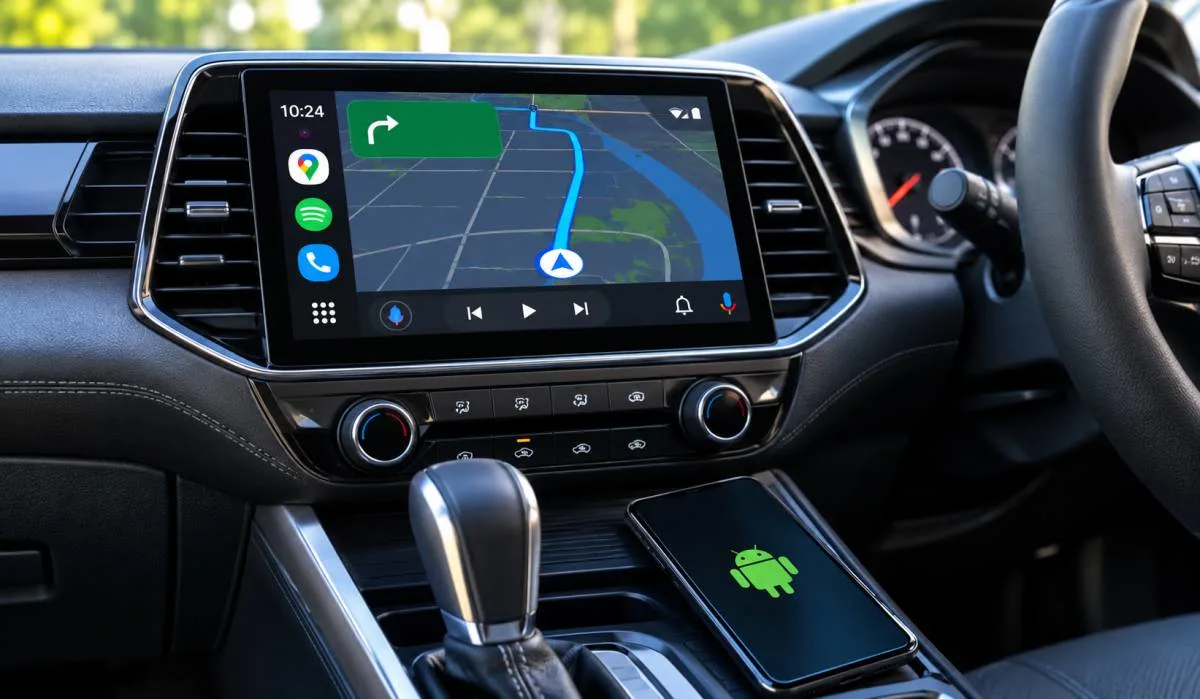
You can learn how to connect Android Auto to car in under two minutes. . Insert a data cable into the USB port of the car and connect your phone; when prompted, press Allow. If your vehicle has Wi-Fi and Bluetooth capabilities, wireless setup is performed in a similar manner: enable Wi-Fi and Bluetooth, and connect the device on the car screen.
The most common connection issues are the result of the charging cable or the port becoming loose, which are simple to resolve. This tutorial will help you configure both wired and wireless connectivity, set up Google Maps on the display and pair the phone with Bluetooth, and provide troubleshooting for some common issues.
What you need before you start?
Check these four things first. Most connection failures come from one of them.
- Android phone with Android 9 or higher (most phones from 2019 onward are fine)
- Android Auto app — built into newer phones, or install it from the Play Store
- Car with Android Auto support — check the car manual or the screen menu
- Good USB cable — a data cable, not a charging-only cable
A charging-only cable is the biggest reason people fail at the first attempt. If your phone charges but Android Auto does not open, the cable is the problem.
Read More: How to Convert Wired Android Auto to Wireless: A Simple
How to connect Android Auto to car using USB?
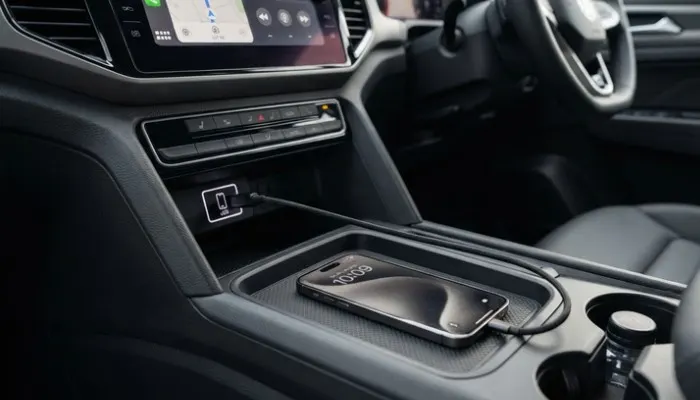
The wired method works on almost every car with Android Auto. It is also the most stable.
- Start the car. Turn on the ignition or start the engine.
- Open the car's infotainment screen and go to Settings, then find Android Auto.
- Plug the USB cable into the car's data port. This port is usually marked with a phone or USB symbol. Do not use the charging-only port near the rear seats.
- Connect the other end to your phone. A prompt appears on the phone screen.
- Tap Allow on the phone to give permission. Accept the terms if asked.
- Wait 10 to 20 seconds. The car screen shows the Android Auto menu with Maps, calls, music, and messages.
The car may ask you to set Android Auto as the default app when a USB is connected. Tap Yes so it opens automatically next time.
How to connect Android Auto via USB if it does not open?
- Pull out the cable and push it back in firmly. Loose fitting is common.
- Try a different cable. Use the original cable from your phone box if possible.
- Try another USB port in the car.
- Clean the phone's charging port with a dry soft brush. Dust blocks the data pins.
- Restart the phone and try again.
If it still fails, remove the phone from the car's saved devices list in Settings, then plug in fresh.
How to connect Android Auto to car wirelessly?
Wireless Android Auto needs two conditions. Your car must support wireless Android Auto, and your phone must support 5GHz Wi-Fi.
Most cars from 2021 onward with wireless support can do this. Phones like recent Samsung, OnePlus, Pixel, and Xiaomi models work.
- Turn on Wi-Fi and Bluetooth on your phone.
- Start the car and open the infotainment screen.
- Go to Settings, then Android Auto, then Add new device.
- On your phone, open Settings, then Connected devices, then Android Auto.
- The car name appears on the phone. Tap it.
- Match the code shown on both screens. Tap Allow.
- Accept the permission prompts on the phone.
After the first setup, Android Auto opens by itself when you start the car, as long as Wi-Fi and Bluetooth are on.
If your car has no wireless support
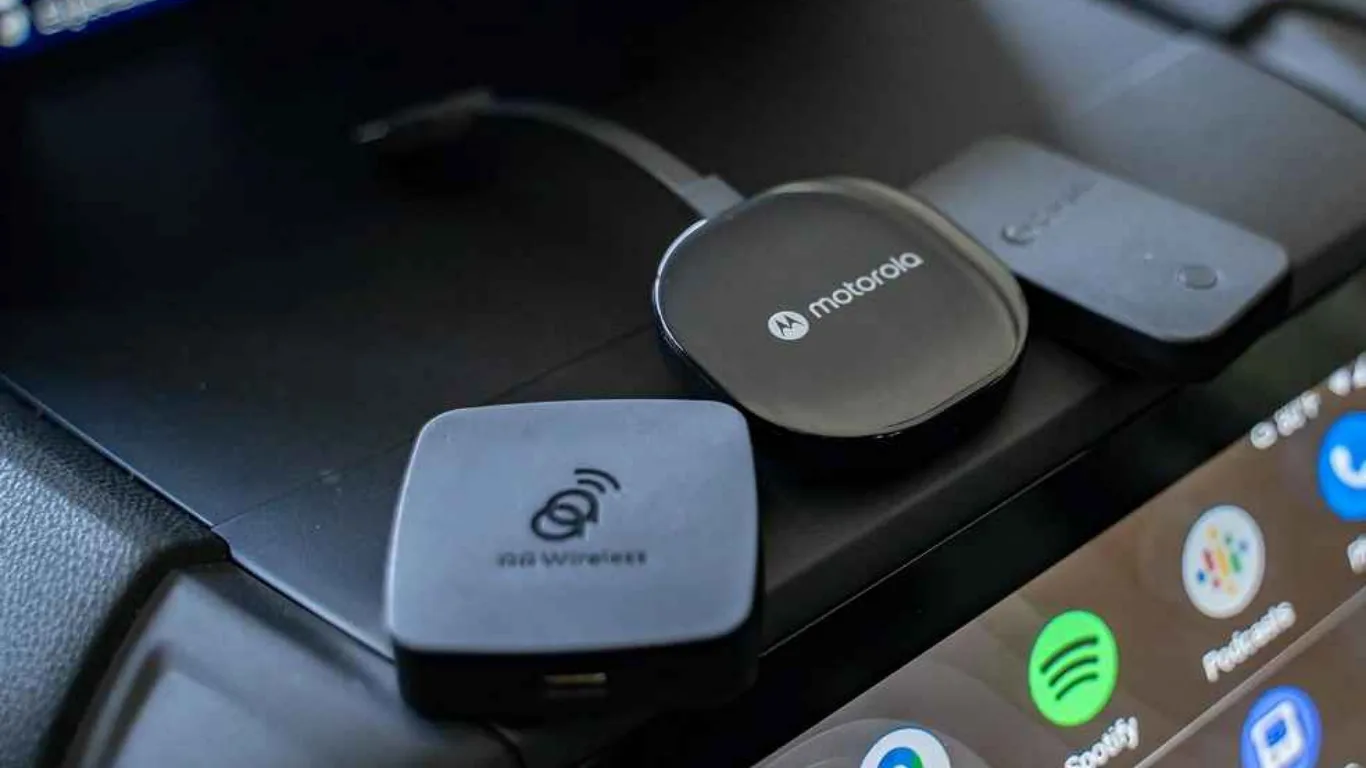
You can buy a wireless Android Auto adapter. It plugs into the USB data port and turns a wired connection into a wireless one. These adapters cost between ₹4,000 and ₹9,000 in India. They work well but add a small delay of one to two seconds.
How to connect Google Maps to car display Android?
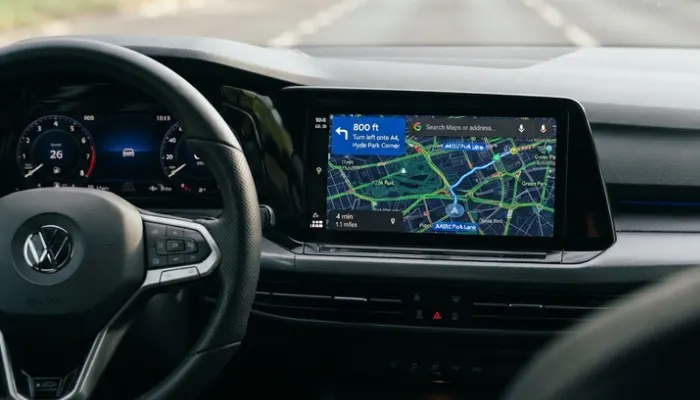
Google Maps is part of Android Auto. Once Android Auto is connected, Maps is already on the car screen.
To use it:
- Tap Maps on the car display.
- Tap the search bar and type your destination. You can also use voice by tapping the mic icon.
- Tap Start to begin navigation.
If Maps is not showing, open the app drawer on the car screen and tap Maps. On some phones, you must open Google Maps on the phone once and allow location permission.
Useful tip: Set your home and work addresses in Google Maps on your phone before you drive. They then appear as one-tap shortcuts on the car screen.
If Maps does not show on the car screen
- Update Google Maps from the Play Store.
- Allow location permission to Google Maps in phone Settings, then Apps.
- Make sure the phone has mobile data or an offline map downloaded.
You May Also Read: Latest Android Auto Features 2026: What's New and Improved
How to connect Android phone to car Bluetooth?
Bluetooth handles calls and music. Android Auto uses Bluetooth too, but the first pairing is separate for many cars.
- Turn on Bluetooth on your phone.
- Start the car and open Settings, then Bluetooth on the infotainment screen.
- Tap Pair new device. The car starts searching.
- On your phone, open Settings, then Bluetooth. Find the car name and tap it.
- Check the six-digit code on both screens. Tap Pair or Allow.
- Allow access to contacts and call history so calls work through the car.
Once paired, the car reconnects by itself each time you sit inside with Bluetooth on.
Note: For Android Auto, Bluetooth alone is not enough. The wired method needs the USB cable, and the wireless method needs both Bluetooth and Wi-Fi. Bluetooth only gives you calls and audio.
Common problems and quick fixes
| Problem | Likely cause | Fix |
|---|---|---|
| Phone charges but Android Auto does not open | Charging-only cable | Use a data cable |
| Connection drops while driving | Loose port or bad cable | Change cable, clean port |
| Car screen shows black | Phone locked or app crashed | Unlock phone, restart car screen |
| Wireless not connecting | Wi-Fi off or 2.4GHz only | Turn on Wi-Fi, use 5GHz |
| Maps not loading | No data or location blocked | Allow location, check data |
| Voice command not working | Mic permission blocked | Allow mic in phone Settings |
FAQs
1. Does Android Auto work without internet?
Yes, for navigation with offline maps and for calls and music stored on the phone. Live traffic and voice search need internet.
2. Can I use Android Auto with any USB cable?
No. You need a data cable. Charging-only cables will power the phone but will not start Android Auto.
3. Why does Android Auto disconnect on its own?
Usually a worn cable or a loose USB port. Change the cable first. If it still drops, get the car's USB port checked.
.

.webp)

.webp)