Google Gemini AI Video Tutorial: Beginner's Guide
Google Gemini can now create videos from your words and images. The tool is called Gemini Omni. It replaces the older Veo model inside the Gemini app. You type a prompt or upload a photo, and it generates a short video with sound. This Google Gemini AI video tutorial shows you how to use it step by step.
We cover how to access the tool, write better prompts, and edit videos by conversation. You can remove objects, change backgrounds, and adjust scenes with simple instructions. No editing skills needed. Just describe what you want. We also share tips for better results and answer common questions. Start creating videos today.
What Is Google Gemini AI Video Generator?
Gemini Omni is Google's newest AI video generation model. It is designed to create videos as easily as having a conversation . You can combine text, images, and video to bring ideas to life.
The tool is available in the Gemini app and on the web at gemini.google.com. It is also accessible through Google Flow and YouTube Shorts .
What you need:
- A Google AI subscription (Plus, Pro, or Ultra) for personal accounts
- Or a qualifying Google Workspace license for work accounts
- You must be 18 or older
There is a free version with strict rate limits. More access is reserved for paid subscribers .
Read More: How to Add Video Schema Markup to a Website: SEO
How Google Gemini AI Video Generator Works?
Gemini Omni uses Google's multimodal AI. This means it understands text, images, audio, and video together. It generates a video with synchronized audio in one pass. Most other tools generate silent clips. Omni gives you dialogue, sound effects, and ambient sound together .
The model is also a "world model." It has an intuitive grasp of physics like gravity and fluid dynamics. This helps motion and materials look believable .
Step-by-Step: How to Generate a Video in Gemini
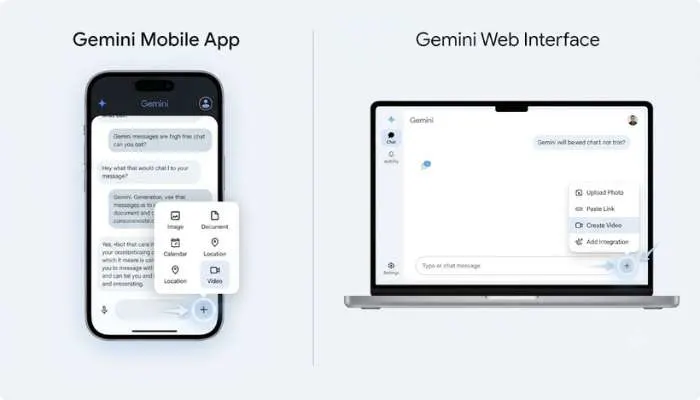
Here is the process for making your first video :
Step 1: Open Gemini
Go to gemini.google.com or open the Gemini app on your phone.
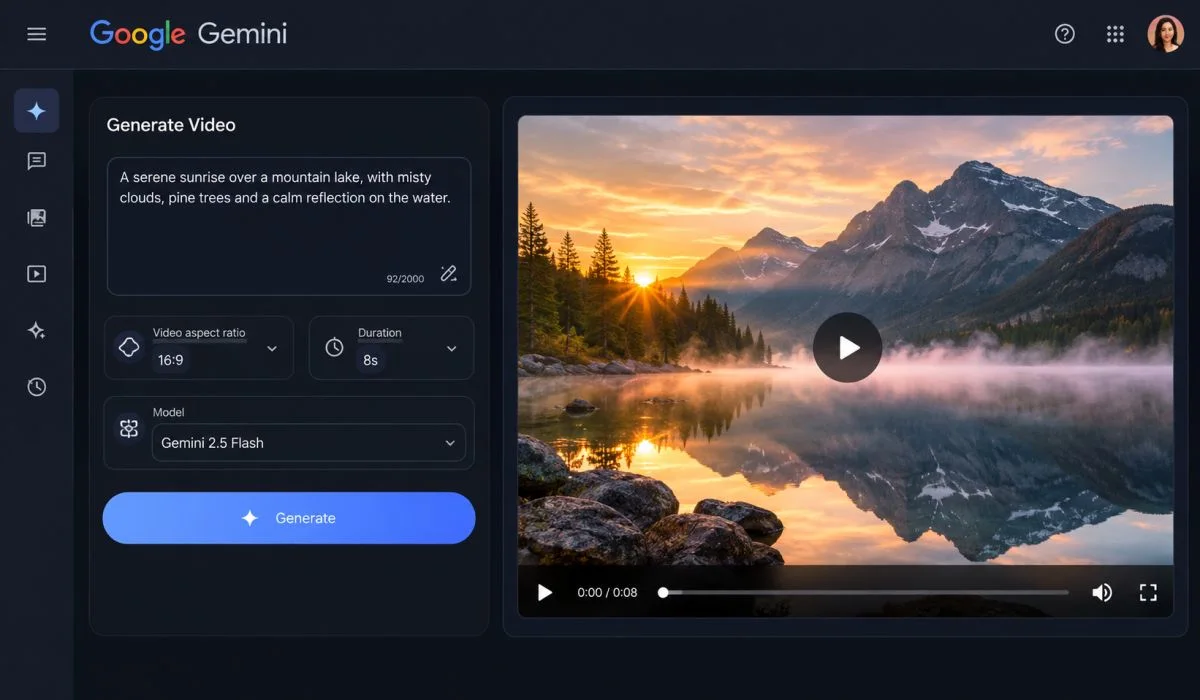
Step 2: Access the Video Tool
On desktop, click the Tools icon and select Create video. On mobile, tap the + button and select Videos .
Step 3: Choose a Template (Optional)
Gemini offers pre-made templates. Pick one to see what is possible. This gives you instant inspiration .
Step 4: Write Your Prompt
Describe the video you want. Be specific about the subject, action, setting, and sound.
Example prompt: "A tabby cat curled on a sunny windowsill, tail flicking slowly as birds chirp outside, warm afternoon light, gentle ambient sound" .
Step 5: Add Images (Optional)
You can upload up to 5 images to guide the video. Use a photo as a starting point or reference. You can also upload one video .
Step 6: Generate
Tap Submit. Video generation takes 1 to 2 minutes. You cannot interact in the same chat while it generates .
Step 7: Download or Share
Once done, tap Share to create a public link or Download to save it to your device .
How to Edit Videos with Gemini?
This is where Gemini Omni stands out. You can edit videos by talking to them. After generating a clip, you can make changes with simple prompts .
What you can edit:
- Remove or replace objects and characters
- Change camera angles
- Modify the scene
- Adjust lighting
- Stabilize the video
- Change the background
Example: Generate a video. Then type "change the shirt from blue to red." Omni keeps everything else the same and only changes the shirt .
You can do this multiple times in one conversation. Each edit builds on the last one .
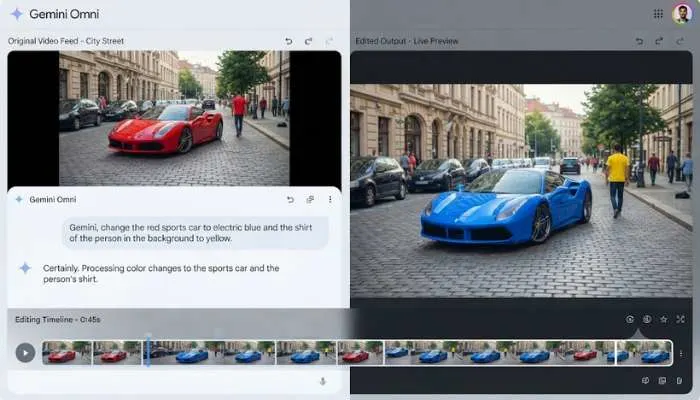
Gemini AI Video Editor: Key Features
Gemini Omni offers several features that make it different from other AI video tools.
- Native audio generation. Every video comes with synchronized audio. You can prompt for dialogue, sound effects, and music .
- Keyframe interpolation. Give Gemini a starting image and an ending image. It creates a smooth transition between them. This is great for timelapses or loops .
- Video-to-video editing. Upload an existing video and tell Gemini how to edit it .
- AI avatars. You can add yourself to videos using an avatar. Type @[your Google username] in your prompt. The avatar looks and sounds like you .
- Aspect ratio control. Choose 16:9 for landscape or 9:16 for vertical before generating .
- Output resolutions. Choose 360p (fast draft), 720p, 1080p, or 4K .
You May Also Read: How to Use Google Gemini Video AI Generator?
Prompting Tips for Better Videos
The quality of your video depends on your prompt. Here is how to write better prompts.
- Be descriptive. Include the subject, action, camera movement, lighting, and mood. "A cinematic drone shot through misty pine mountains at sunrise, gentle wind sounds" works better than "mountains" .
- Prompt the audio. Describe dialogue in quotes. Mention sound effects and music. "She says 'Hello' as wind chimes ring in the background" gives the model direction .
- Control scenes. Add "in a single continuous shot" or "no scene cuts" for one unbroken take .
- Use negatives. You can say "no dialogue" or "no music" to keep the track clean .
- Time your events. Write things like "after 3 seconds, a bird flies in" to control pacing .
- Keep dialogue short. The most common mistake is giving more than 10 seconds of dialogue. The AI compresses rushed speech into the clip, making it garbled .
The Bottom Line
Gemini Omni makes AI video generation simple. You describe what you want. It creates a video with sound. You can edit by having a conversation. The tool is built into the Gemini app and works on web and mobile.
Start with a simple prompt. Use a template if you are unsure. Keep your dialogue under 10 seconds. Then edit by telling Gemini what to change. The results are impressive for a tool this easy to use.
FAQs
1. What is Gemini Omni?
It is Google's newest AI video generation model. It replaces Veo inside the Gemini app. It creates videos from text, images, and video. It also generates synchronized audio .
2. Do I need a subscription to use Gemini video generation?
Yes, for most users. You need a Google AI Plus, Pro, or Ultra plan for personal accounts. Work accounts need a qualifying Workspace license. A free version exists with strict limits .
3. How long are Gemini-generated videos?
Videos are up to 10 seconds long. You can extend scenes by asking Gemini what happens next .
4. Can I edit a video after generating it?
Yes. This is a core feature. You edit by conversation. Type instructions like "change the background" or "remove the character." Omni changes only what you ask .
5. Can I use my own image in a Gemini video?
Yes. You can upload up to 5 images and 1 video as references. You can also use an AI avatar that looks and sounds like you .
6. What resolutions does Gemini Omni support?
You can generate at 360p, 720p, 1080p, or 4K. Aspect ratios are 16:9 and 9:16 .
7. Is there a watermark on Gemini videos?
Yes. All videos include SynthID, an invisible watermark for identifying Google AI-generated content .
8. Can I use Gemini Omni for free?
There is a free version with strict rate limits. Paid Google AI plans get more generations and higher limits. The free version is good for testing .
.

.webp)