How to Upload Videos to Google Drive from Phone, Laptop, and Computer
You have a video on your phone or computer. You wish to make some copies or back up it up. The easiest way is to use Google Drive. It only takes a few taps or clicks to learn how to upload video to Google Drive. Go to your mobile phone and press the plus button.
In your laptop, go to drive.google.com and click New drag and drop works, too. The file is uploaded to the cloud. It's accessible from any location. No cables, no USB sticks. This guide will detail all methods. Android, iPhone, Mac, PC. The Restrictions You Have to Be Aware of Before You Begin. Read on and upload your video in minutes.
How to Upload Videos to Google Drive from Phone?
The mobile app is the easiest way to upload videos from your phone.
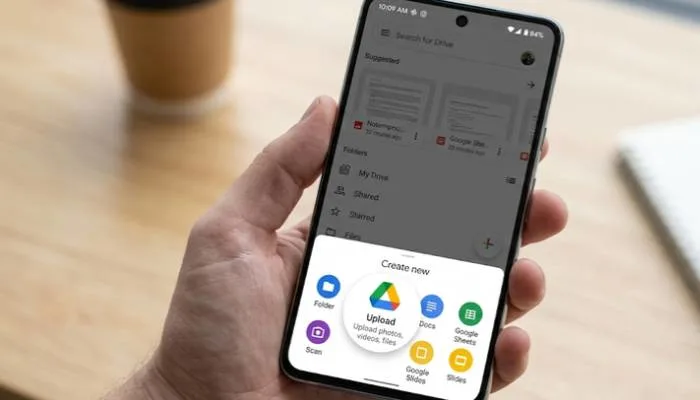
On Android
- Open the Google Drive app on your phone.
- Tap the + (plus) button in the bottom right corner.
- Select Upload .
- Find and select the video from your gallery or files.
- Tap Upload to confirm.
Alternatively, you can open your Photos app, select the video, tap Share, and choose Drive to save it directly .
Read More: Google Gemini AI Video Tutorial: Beginner's Guide
On iPhone
- Open the Google Drive app.
- Tap the + (plus) button.
- Select File upload .
- Browse your iPhone's files and select the video.
- Tap your chosen file to upload it.
You can also use the iPhone's Files app: select the video, tap Share, and choose Drive .
How to Upload Videos to Google Drive on Laptop or Computer
The desktop browser method gives you the most control over where your video goes.
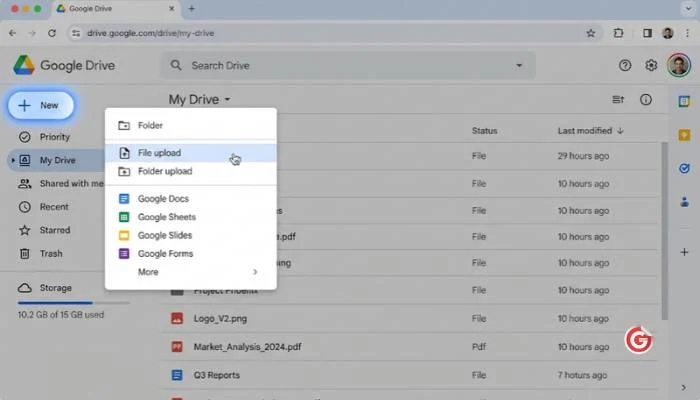
- Go to drive.google.com in your browser.
- Click the + New button in the top left corner.
- Select File upload .
- Choose your video file and click Open.
Drag and Drop: You can also simply drag the video file from your computer's folder directly into the Google Drive browser window. It will upload automatically .
Drive for Desktop: If you install the Google Drive app for your computer, a "Google Drive" folder appears on your hard drive. Any file you drag into that folder syncs to the cloud automatically .
How to Upload Videos to Google Drive from Computer (Mac or PC)?
The process is identical for both Mac and PC users. Just open your preferred browser (Chrome, Safari, Edge, etc.), go to drive.google.com, and follow the steps above using the New > File upload button. There is no difference in the upload process between operating systems.
You May Also Read: How to Add Video Schema Markup to a Website: SEO
What You Need to Know About Video Limits?
Before you upload, keep these limits in mind.
- File Size: You can upload a video up to 5 TB in size, provided you have that much storage space available in your Google Drive . If your video is larger than your remaining storage, the upload will fail.
- Playback Resolution: While you can upload videos of any resolution, Google Drive plays back video at a maximum resolution of 1920 x 1080 (1080p) . Higher-resolution videos will be downscaled for playback.
- Supported Formats: Drive supports most common video formats, including MP4 (MPEG4), MOV, AVI, WMV, and WebM .
- Free Storage: Every Google account comes with 15 GB of free storage shared across Drive, Gmail, and Photos. If you are uploading large videos, you may need to buy more storage or delete old files .
FAQs
1. How do I upload a video to Google Drive from my phone?
Open the Google Drive app, tap the + button, select Upload, and choose your video. On Android, you can also share directly from your gallery to Drive .
2. How do I upload a video to Google Drive on my laptop?
Go to drive.google.com, click New, then File upload, and select your video. You can also drag and drop the file into the browser window .
3. How do I upload a video to Google Drive from my iPhone?
Open the Drive app, tap +, select File upload, and pick your video. Alternatively, use the Files app, tap Share, and choose Drive .
4. How do I upload a video to Google Drive from my computer?
The process is the same for Mac and PC. Open a browser, go to drive.google.com, and use the New > File upload button .
5. Why is my video taking so long to upload?
Upload time depends on your internet speed and file size. For large videos, connect to a strong Wi-Fi network. Mobile data can be slow and may use up your data plan .
6. What is the maximum video size I can upload?
You can upload a video up to 5 TB, but only if you have that much free space in your Drive. Otherwise, the limit is your available storage .
7. Can I upload a video larger than my free storage?
No. The upload will fail if the video is larger than your remaining storage. You will need to free up space or purchase additional storage .
8. What video formats does Google Drive support?
Drive supports MP4, MOV, AVI, WMV, WebM, and several other common formats. If your video is in an unusual format, you may need to convert it first .
.

.webp)


.webp)